A Better Way to Handle Terminology Management in Confluence

Smart Terms is more than just a glossary. It’s a full-fledged terminology management system built for teams that care deeply about clarity, consistency, and cross-department alignment. Unlike simple definition tools or lightweight glossaries, Smart Terms gives you full control over how terms are created, displayed, highlighted, and translated across Confluence, making it a true source of truth for terminology in any organization.
What really sets Smart Terms Apart is its precision and customization. Instead of relying on automatic guesses or generic suggestions, every definition, highlight rule, and translation is intentional and admin-controlled. It doesn’t try to infer meaning it enforces the correct one. Smart Terms gives teams the power to define terms once and apply them consistently everywhere, with complete flexibility over how they appear, who sees them, and how they behave on Confluence pages.
From fine-grained highlight rules to space-level overrides, multilingual glossaries, logographic indexing, and rich definition pop-ups with media, Smart Terms is built for organizations that want reliability and customization, not shortcuts.
Highlighting Engine & Customization
Smart Terms’ highlight engine is highly flexible. You can fine-tune exactly how and where terms are highlighted:
- Auto-highlight or manual: Choose to automatically mark all terms when a page loads, or not. A toggle button on each page lets users turn highlights on or off (If disabled by space/global settings).
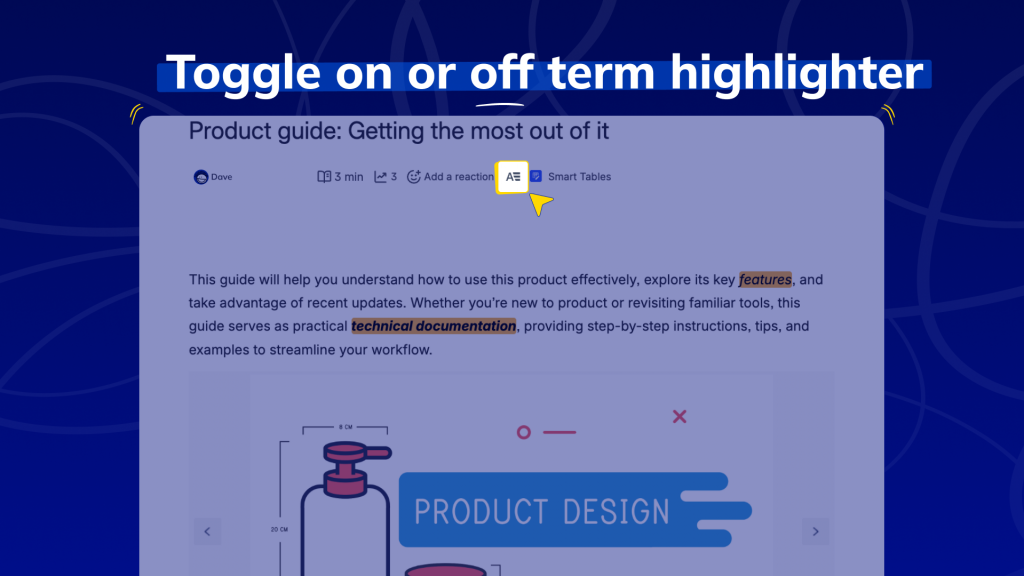
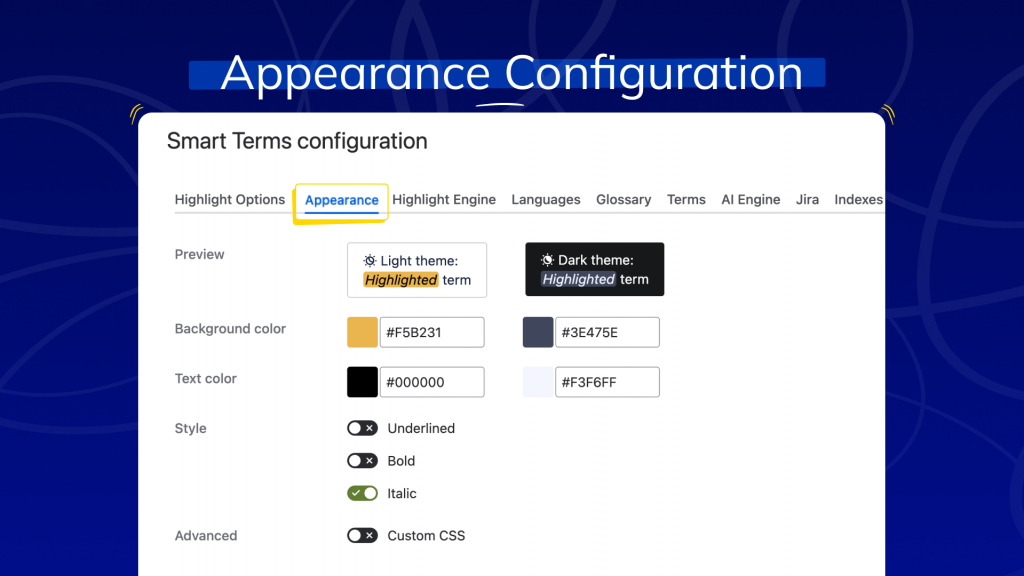
- Visual style: Pick your highlight colors and style, set the background color, text color, and underline/bold/italic style.
You can even add custom CSS for special styling.
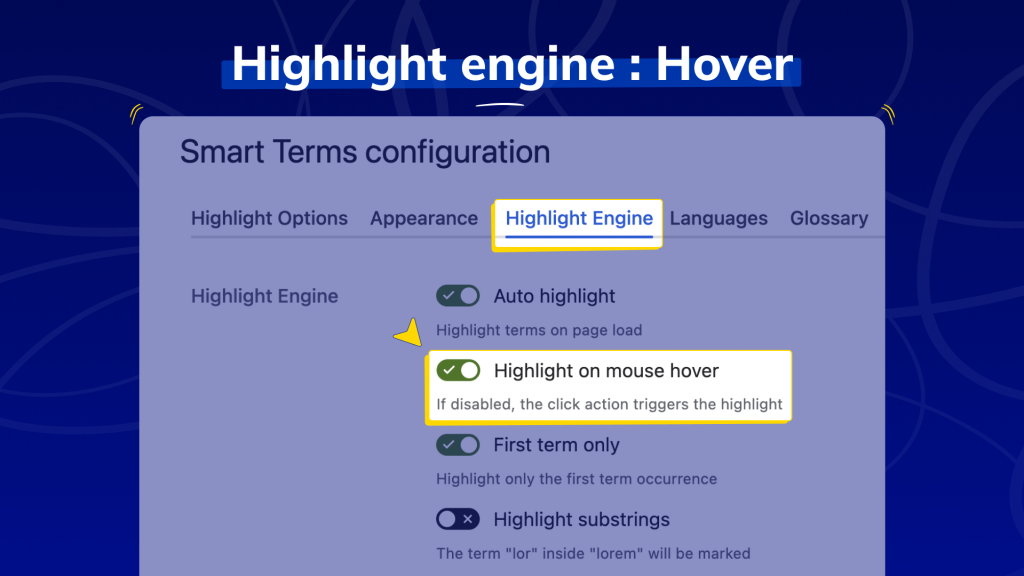
- Hover vs click: Control interaction by enabling “highlight on hover” or forcing users to click a word to see definitions. (We’ve seen product teams disable hover so users must click, while support teams keep hover on.)
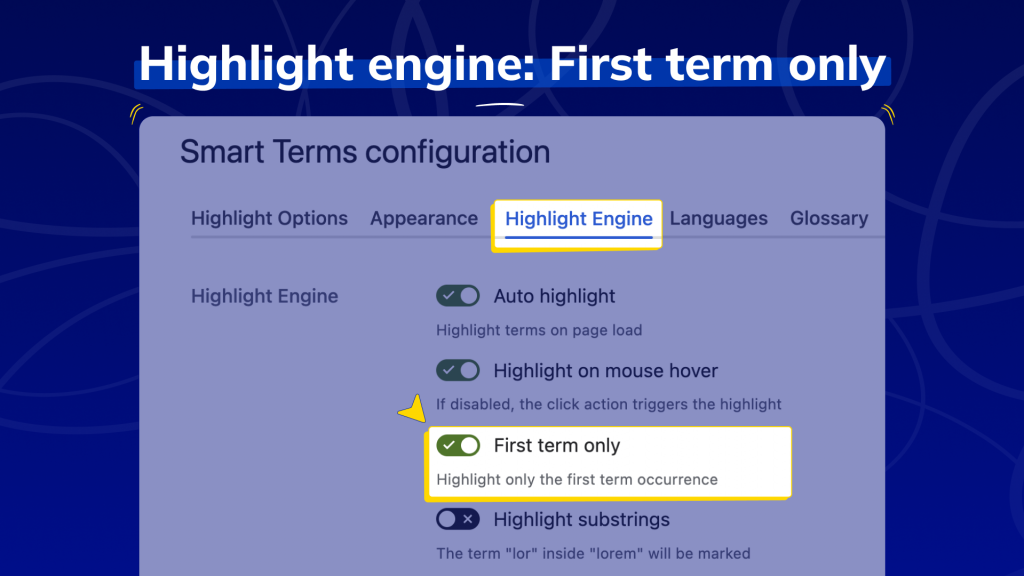
- First vs all occurrences: Choose whether to highlight only the first occurrence of a term per page, or every occurrence. This avoids overwhelming pages with repeated highlights if desired.
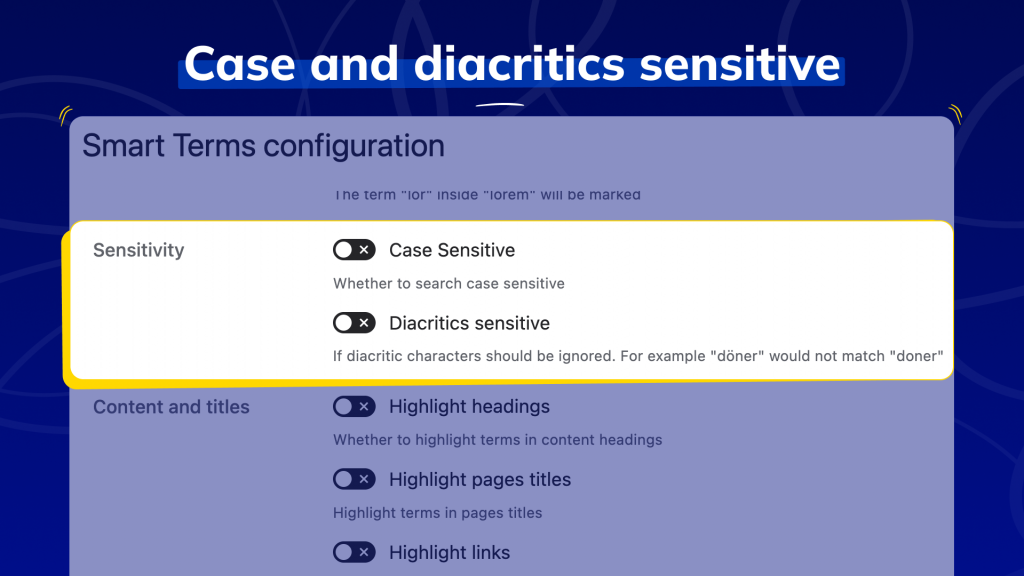
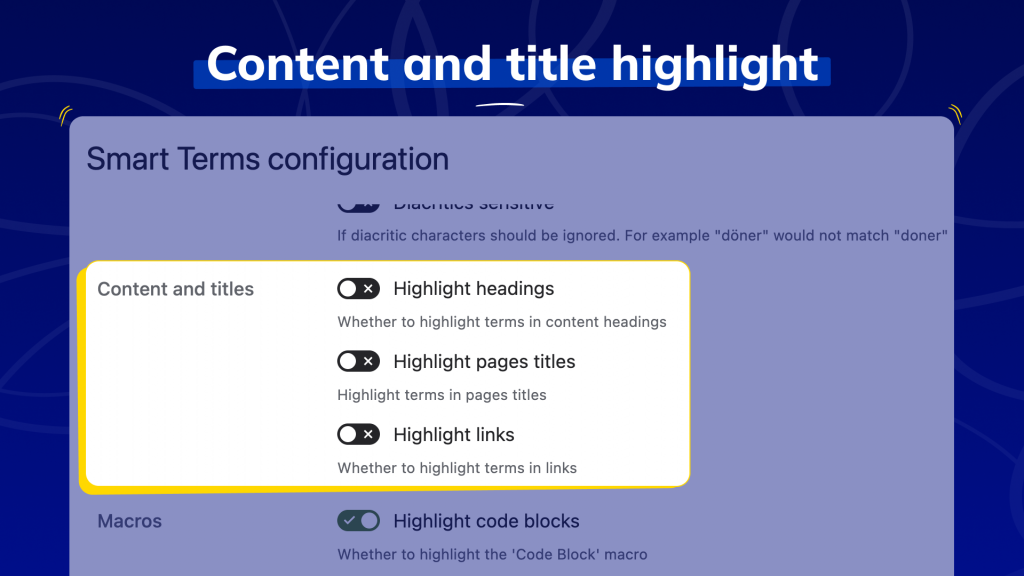
- Substring & sensitivity: Turn on/off substring matching (e.g. highlight “mar” inside “Smart”). Toggle case-sensitive and diacritics-sensitive matching to prevent unintended highlights (e.g. treating “API” differently from “api” or handling accented characters).
- Content targeting: Enable or disable highlighting in specific parts of pages, headings, page titles, links, code blocks, and even blog posts can all be individually toggled.
When you hover or click a highlighted term, a definition pop-up appears with all details (term title, definition text, media, related terms, etc.). If a term has multiple definitions (e.g. an acronym vs. a full phrase), users can slide between them in the pop-up. Related terms or synonyms flash briefly to draw attention, helping users explore your custom glossary easily.
Smart Terms supports space-level and user-level rules. Admins can disable highlighting globally or for specific glossaries.
Likewise, each space can override settings: in one real-world example, an “Accounting” space simply turned off all highlighting, while a “Product” space enabled highlighting with a yellow, bold style and disabled hover. Individual users can even disable Smart Terms on their profile if they prefer. This per-space/user flexibility means you can highlight terms differently for each team without affecting others.
Multi-Language & Logographic Support
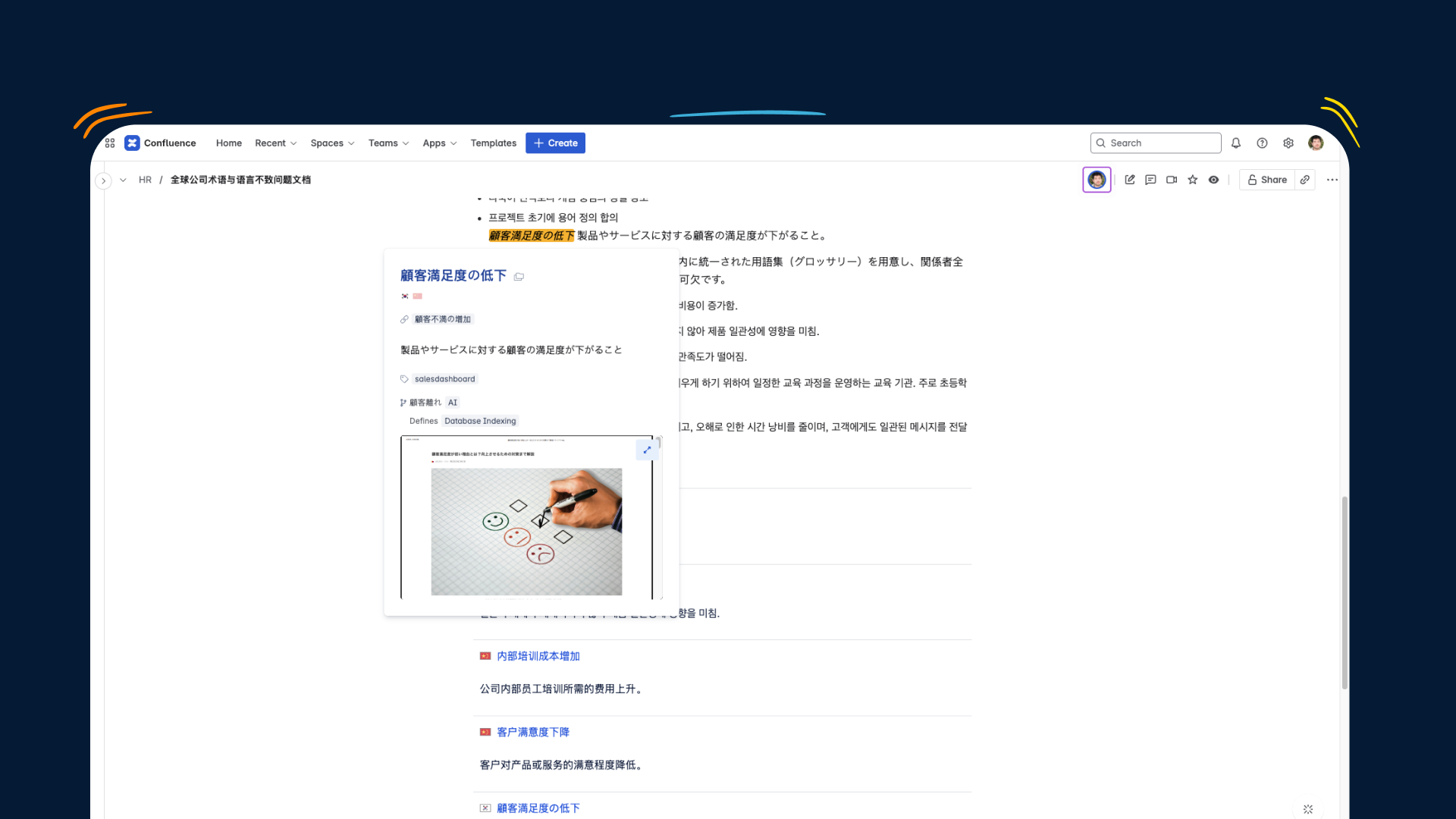
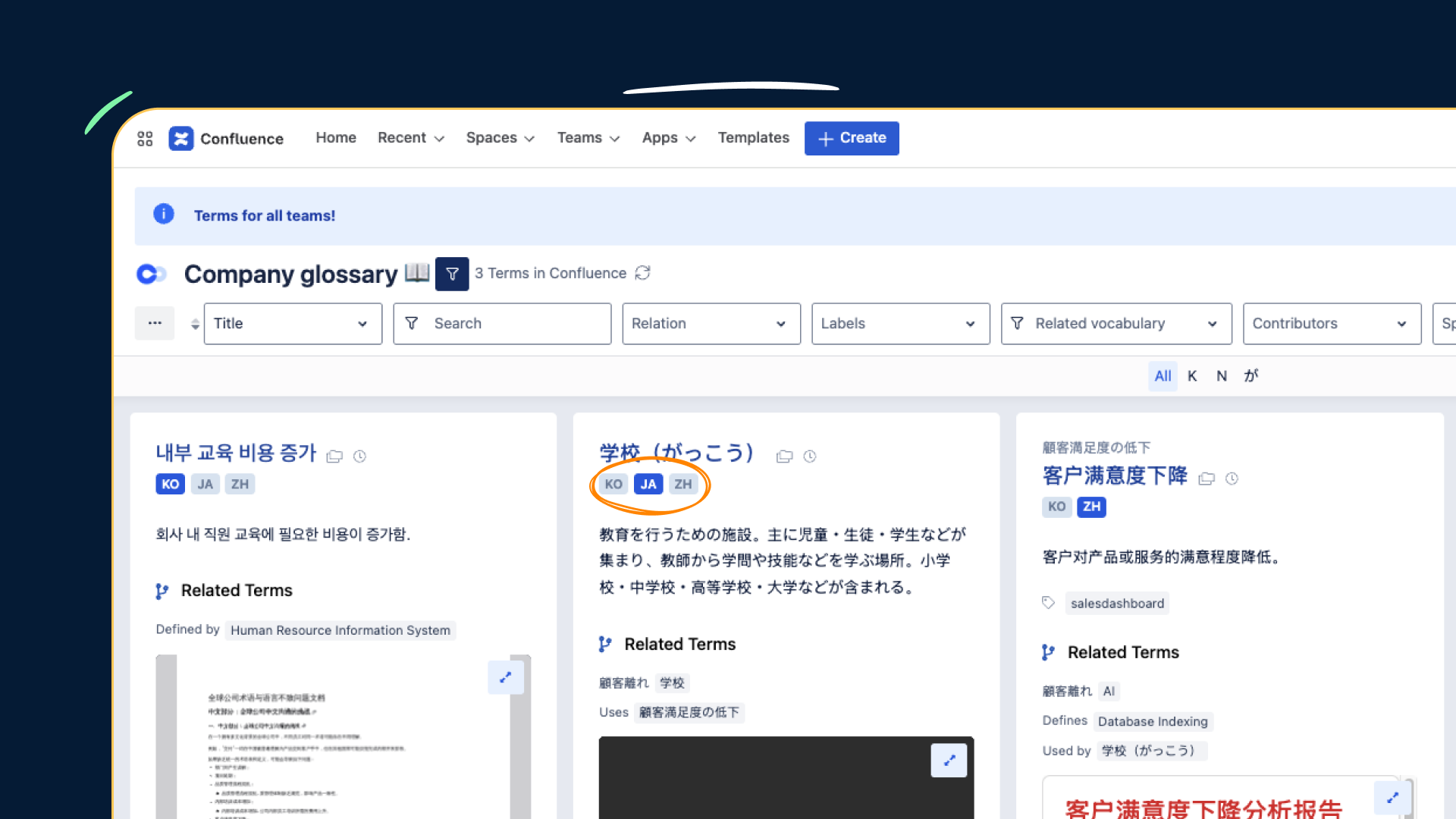
Smart Terms is built for global teams. You define terms in a default language, then add translations as needed. You can create a new term and immediately choose multiple languages, or add translations later via the term editor. Bulk import of multi-language terms from Excel is also supported for fast setup.
When highlighting, Smart Terms can mark up all translations at once or just the user’s language. For example, if your Confluence pages have content in English and German, you can highlight both English and German terms for a mixed audience.
Or you can choose “only user language” mode: a German user will see only German-term highlights, while an English user sees only English terms.
This is ideal when different groups share pages (e.g. an external audience of mixed nationalities sees all translations, or a multicultural team each sees terms in their own language).
Smart Terms even handles logographic languages (Chinese, Japanese, Korean). It applies language-specific indexing so those terms sort sensibly in glossaries.
For instance, Japanese terms are indexed by gojūon order, Chinese by character stroke count or Pinyin, and Korean by the initial Hangul consonant.
If the app misdetects a language, you can manually fix the index letters. This support means you can build a truly multi-language glossary in Confluence – even for CJK (Chinese/Japanese/Korean) text without hassle.
In addition to translations, Smart Terms supports alternate terms and meanings. Each term can have multiple definitions, synonyms, or related terms. For example, the term Item might have two meanings (“Incident” vs “Ticket” in one example) that users can toggle between.
Related terms link together as a “vocabulary,” so clicking one can flash others. You can attach images, videos, or diagrams to any term, too. In short, Smart Terms becomes your central terminology library: a terminology management for Confluence that covers all languages and complexities.
Use Cases and Benefits
Smart Terms helps teams maintain a single, unified vocabulary across the company while still allowing each department to manage its own terminology. A global glossary can hold the official definitions everyone agrees on, while teams like Product, Support, or Marketing keep space-level glossaries for internal jargon. This setup gives every group the flexibility they need without losing a shared source of truth, maintaining communication clean, and avoiding conflicting definitions.
Highlighted terms also make documentation easier to understand. When someone reads a Confluence page, they can hover over or click a term to instantly see its definition, synonyms, related terms, and even rich media. This reduces confusion during everyday reading and helps new hires settle in faster by allowing them to immediately grasp the meaning of acronyms and technical phrases without leaving the page.
Because every team works differently, Smart Terms adapts to each documentation style. Support teams can use hover highlights with a blue underline and strict case sensitivity, while Product teams prefer bold yellow highlights on click. Accounting might disable highlights entirely. This flexibility ensures each department presents terminology in a way that fits its workflow and audience, all without affecting other spaces.
Centralizing terminology also reduces redundant work. When a team updates a term, whether the meaning shifts, a new synonym is added, or an acronym needs clarification, the change is automatically applied everywhere. Teams no longer lose time re-explaining definitions or correcting misunderstandings. Everyone stays aligned with less back-and-forth, fewer errors, and far more consistency across documents.
Smart Terms also supports multilingual documentation, which is especially helpful for international teams or client-facing spaces. Terms can be translated into multiple languages and highlighted based on the reader’s preferences, or highlighted in all available languages at once. This makes joint work across regions far smoother by removing language barriers and ensuring everyone understands terminology in their own language.
In environments where documentation is central, like engineering wikis, support knowledge bases, product manuals, and onboarding guides, Smart Terms enhances how teams consume information. Readers get definitions right in the flow of the page, authors avoid cluttering documents with extra explanations, and admins maintain terminology centrally. By combining rich definitions, customizable highlighting, and multilingual support, Smart Terms turns Confluence into a clearer, more aligned workspace where terminology confusion disappears.
ConfluenceDocumentationGlossaryKnowledge managementMultinational teams