Knowledge base as a shared language for your organization: a guide for knowledge managers

Your company probably has a well-organized knowledge base in Confluence. Project documentation, internal procedures, product specifications, and team guidelines live in one place.
But what happens when different teams use different terms for the same thing? Or when an acronym means something completely different depending on who’s reading it?
For Knowledge Managers, the challenge isn’t just making information accessible. It’s making sure employees understand the terminology behind it and use it consistently.
A knowledge base helps teams document what they know. A shared company glossary helps everyone speak the same language.
TLDr
A Confluence knowledge base stores your organization’s knowledge, but it doesn’t automatically standardize the terminology used across teams. With Smart Terms for Confluence and Jira, you can build a shared company glossary in six steps: identify terminology, organize it into glossaries, define terms and related vocabulary, display definitions directly in context, extend terminology across teams and Jira, and keep definitions up to date. Lexi, the AI Glossary Assistant, can also help identify terms and draft definitions from existing content.
Why your company knowledge base needs a shared vocabulary
Knowledge management is about more than documenting information. It also means making that information understandable and reusable across an organization.
Imagine three teams working on the same project:
- The Product team refers to a feature as a release candidate.
- The Engineering team uses RC in technical documentation.
- The Support team sees RC in an internal troubleshooting guide without knowing what it means.
Everyone has access to the documentation, but not everyone understands the terminology in the same way.
The problem becomes more complicated when organizations grow, new employees join, and different departments develop their own abbreviations, acronyms, and technical language.
This creates several challenges:
- Employees spend time searching for definitions.
- The same concept appears under different names.
- New hires struggle to understand internal documentation.
- Teams interpret unfamiliar terminology differently.
- Documentation writers repeatedly explain the same terms.
A shared company glossary helps address these challenges by providing a consistent reference for organizational terminology.
Rather than explaining the same concept across multiple pages, teams can maintain a definition that employees can access whenever they encounter the term.
Step 1: Identify the terminology your teams use every day
Before building a glossary, start by identifying the terms that appear regularly in your existing documentation.
You don’t need to define every word. Focus on terminology that is specific to your organization, frequently misunderstood, or important for cross-team communication.
For example:
| Type of terminology | Examples | Why define it? |
|---|---|---|
| Internal acronyms | SLA, OKR, RCA | Help employees understand abbreviations |
| Product terminology | Feature Flag, Release Candidate | Keep product language consistent |
| Technical terminology | API, Deployment Pipeline | Explain concepts to nontechnical readers |
| Business processes | Change Request, Escalation | Establish common process definitions |
| Company-specific terms | Internal project names, team terminology | Help new employees understand organizational language |
Start with the Confluence spaces your employees use most often, such as product documentation, engineering, operations, or HR.
You can identify terms manually by reviewing frequently accessed pages and collecting team feedback.
Alternatively, Smart Terms includes Lexi, an AI Glossary Assistant, which can scan existing Confluence content, identify relevant terminology and acronyms, and draft definitions for review.
This gives Knowledge Managers a starting point without having to review every page manually.
Step 2: Organize your terminology into a company glossary
Once you’ve identified your terms, decide how to organize them.
Not all terminology needs to be available to everyone. Some definitions may apply company-wide, while others are relevant only to a particular team or department.
For example, your organization might need:
| Glossary | Example terms | Intended audience |
|---|---|---|
| Company glossary | OKR, SLA, Company-specific acronyms | All employees |
| Product glossary | Roadmap, Feature Flag, Release Candidate | Product and Support |
| Engineering glossary | API, Deployment, CI/CD | Engineering teams |
| HR glossary | Probation Period, Leave Policy | Employees and HR |
| Compliance glossary | Risk Assessment, Control, Audit Evidence | Compliance and Operations |
With Smart Terms for Confluence, you can create and manage glossaries within Confluence spaces.
Terms can remain associated with a specific space or be made available more broadly through global glossary settings.
For instance, Engineering may maintain technical terminology within its own glossary, while company-wide terms are shared across other spaces.
This gives Knowledge Managers flexibility to organize terminology around their teams while making important definitions accessible across the organization.
Step 3: Define terms and connect related vocabulary
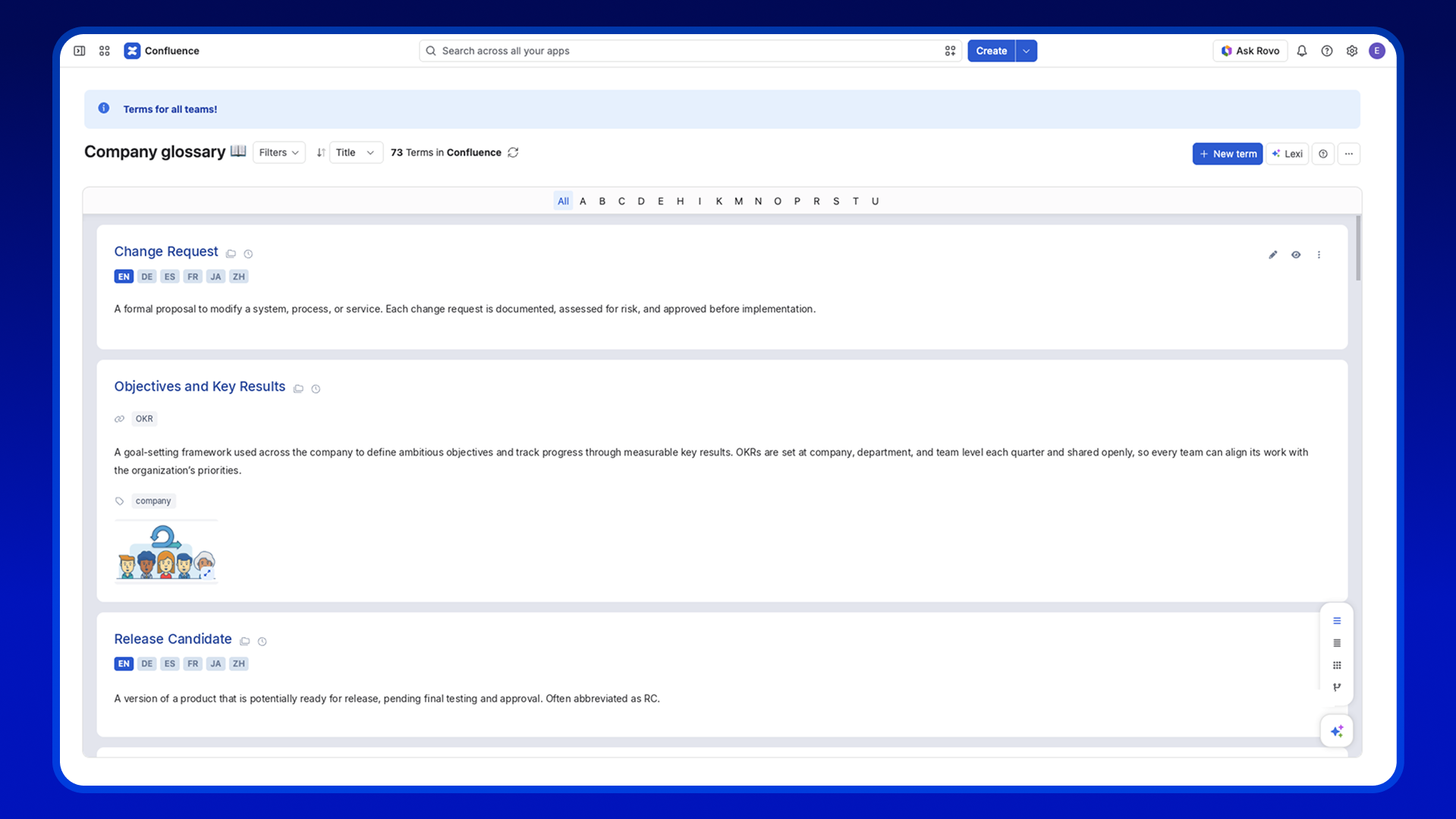
Creating a glossary isn’t just about listing terms alphabetically. The definitions should explain the meaning clearly and reflect how your organization uses each concept.
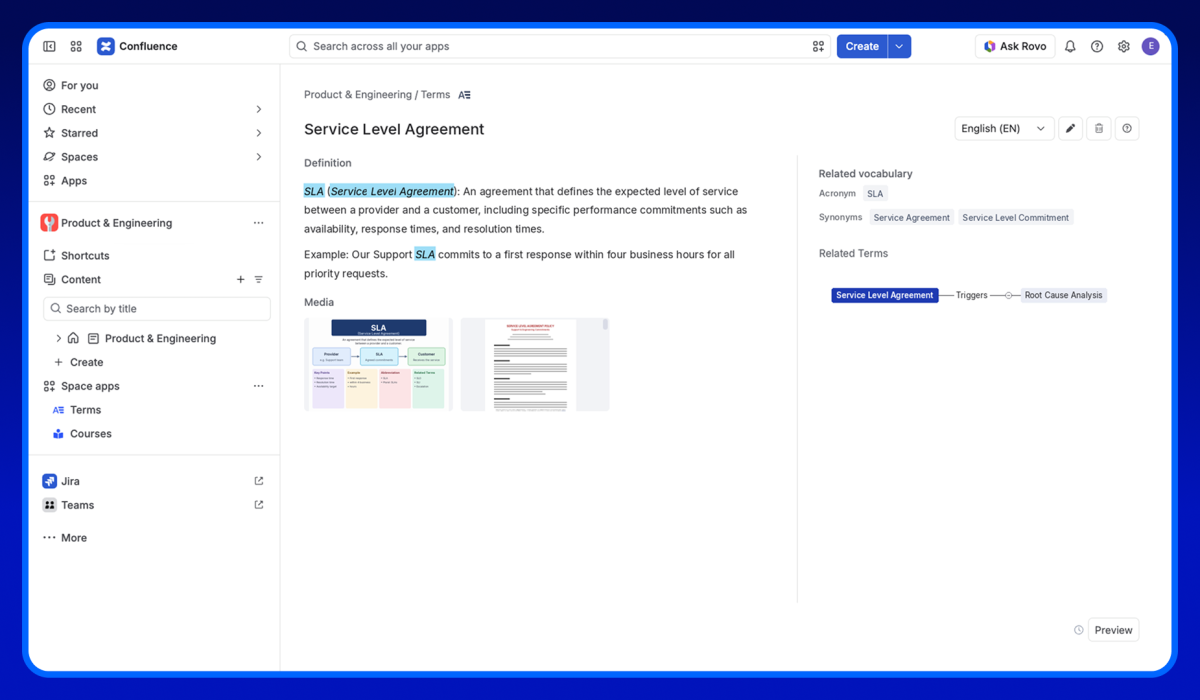
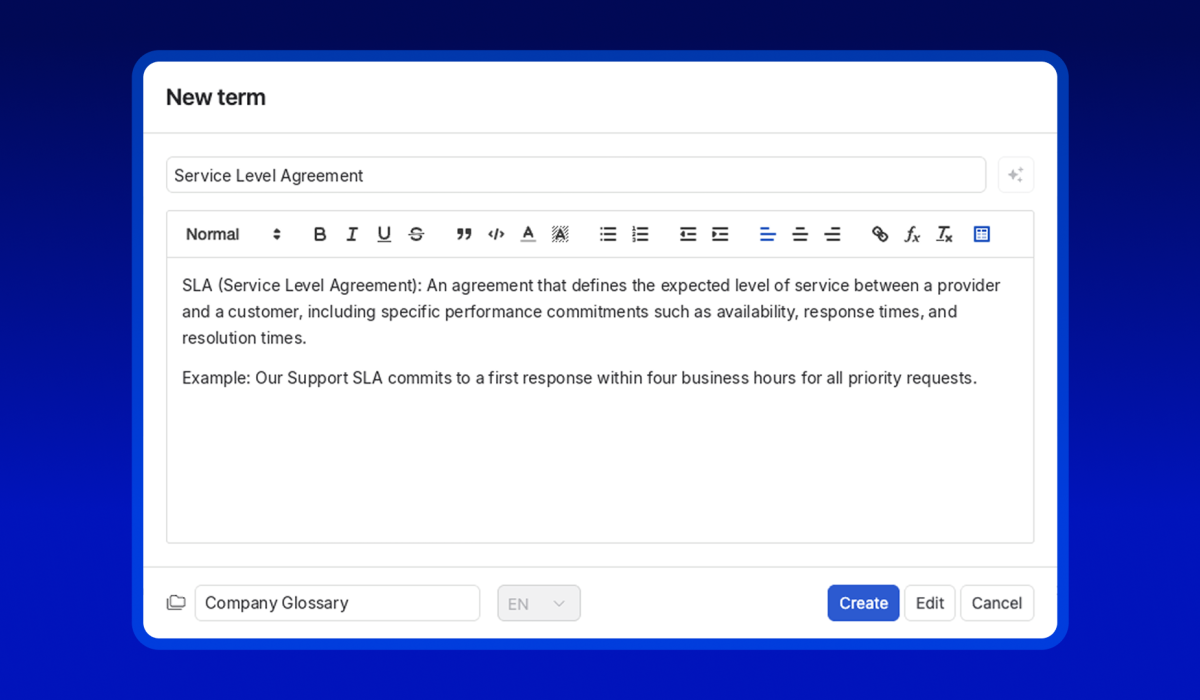
Consider the term Service Level Agreement.
A simple glossary entry could contain:
Term: Service Level Agreement
Acronym: SLA
Definition: An agreement that defines the expected level of service between a provider and a customer, including specific performance commitments.
Related vocabulary: Service Level Objective (SLO), Service Level Indicator (SLI).
This gives employees the definition and helps them recognize related concepts.
Smart Terms lets you enrich glossary entries with definitions, images, videos, PDFs, and related vocabulary such as acronyms, synonyms, antonyms, and plurals.
You can also create relationships between terms to help employees explore connected concepts.
For example, if your organization uses RC as an acronym for Release Candidate, you can associate both expressions with the same glossary entry rather than creating unrelated definitions.
Knowledge Managers can also use Lexi to generate draft definitions and review or edit them before adding them to the glossary.
The objective is to make your glossary a reliable source of terminology rather than another collection of disconnected information.
Step 4: Make definitions accessible directly in Confluence pages
Having a company glossary is useful. But expecting employees to open it every time they encounter an unfamiliar term creates another step in their workflow.
Consider a new employee reading a Confluence page about an internal release process.
They encounter terms such as Feature Flag, Release Candidate, and Deployment Pipeline.
Without contextual definitions, they might interrupt their reading, search for each term, or ask a colleague for clarification.
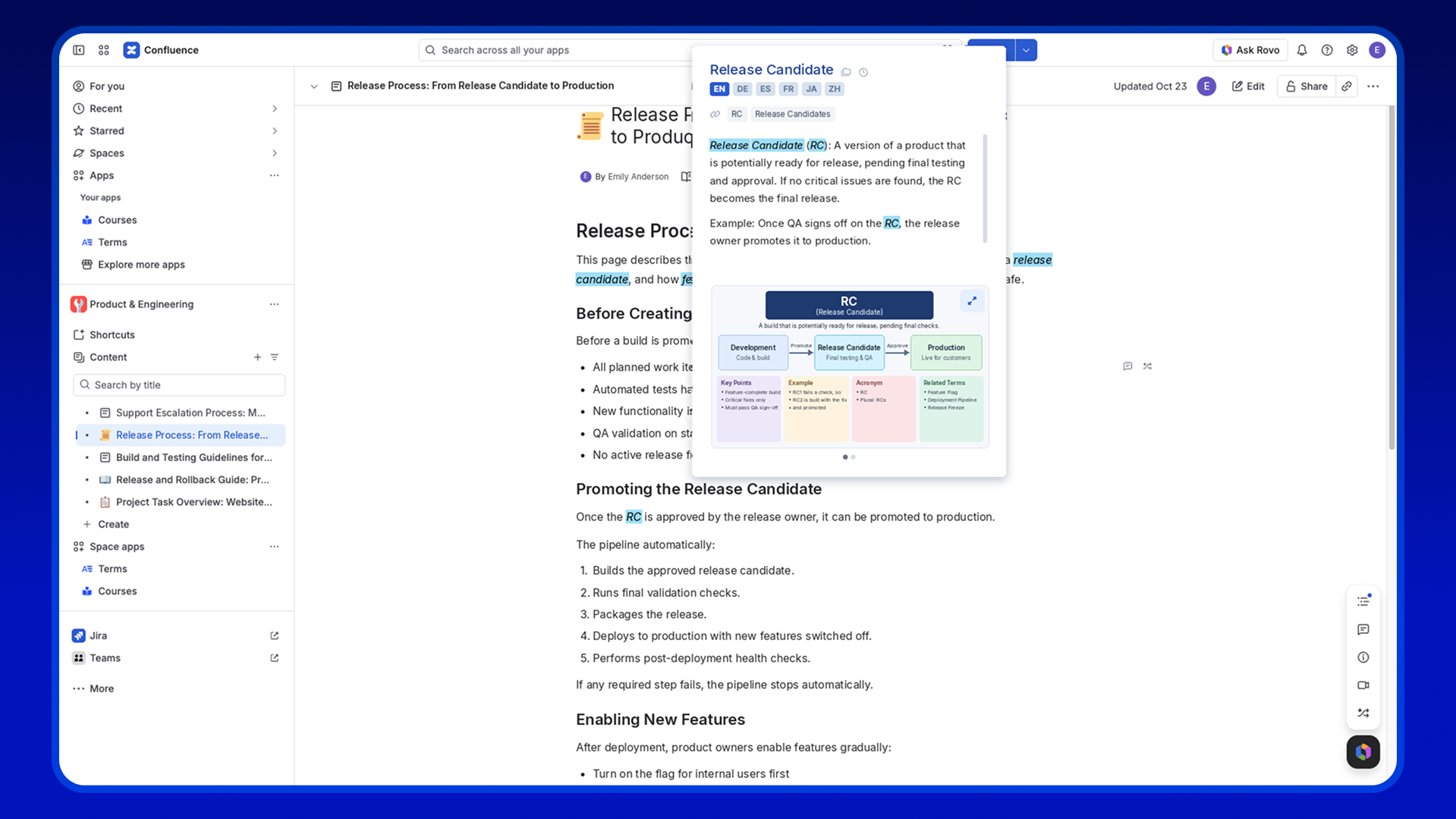
With Smart Terms’ automatic highlighting, recognized glossary terms can be highlighted directly in Confluence content.
When readers hover over or click on a highlighted term, they can access its definition without leaving the page.
Smart Terms can also recognize related vocabulary, such as configured acronyms and synonyms, so employees can access the relevant definition even when the documentation uses a different expression.
Knowledge Managers can customize the highlighting experience by controlling which terms are highlighted, where highlighting is applied, and how frequently highlights appear.
For example:
- Highlight company-wide terminology across relevant Confluence spaces.
- Keep department-specific terminology within designated spaces.
- Display only the first occurrence of a term to reduce visual clutter.
- Exclude selected content areas or adjust highlighting behavior through configuration.
The result is documentation that provides explanations in context without requiring writers to repeat definitions across every page.
New: Highlight glossary terms in the Confluence editor
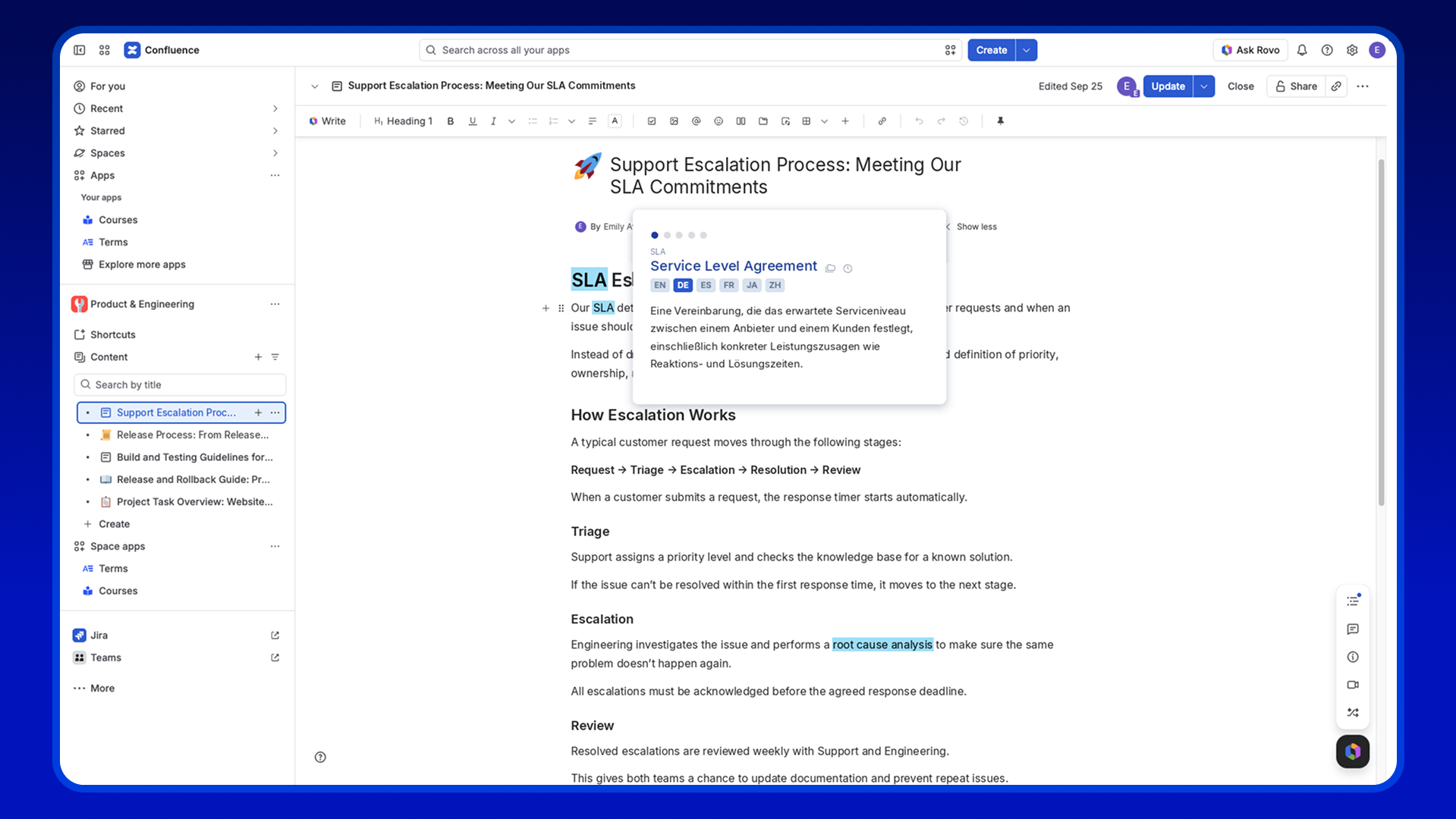
With the latest Smart Terms release, glossary terms are now highlighted directly in the Confluence page editor and Live Docs.
Content creators can recognize existing glossary terms while writing, helping teams maintain consistent terminology from the first draft to the published page.
Step 5: Extend shared terminology across teams and Jira
Company terminology rarely stays within a single Confluence space.
The same acronyms and technical concepts can appear in project documentation, Jira work items, support workflows, and internal discussions.
For example, an Engineering team might document a technical process in Confluence and then reference it in a Jira work item.
If a Product Manager or Support colleague is unfamiliar with the terminology, they may still need to look up its meaning.
Smart Terms supports glossary term highlighting across Confluence and Jira, using the glossary managed in Confluence as the source of definitions.
Once the Jira connection and required browser extension are configured, supported Jira content can display highlighted terms and their definitions.
This helps teams use the same terminology across documentation and work items.
The connection is particularly useful for organizations where several departments collaborate on technical projects but have different levels of familiarity with the terminology involved.
For example:
- Engineering defines technical concepts in Confluence.
- Product teams reference those concepts in Jira work items.
- Support teams consult definitions when reviewing related requests.
- New employees use contextual definitions to understand unfamiliar language.
Instead of maintaining separate terminology lists for each workflow, teams can rely on shared glossary definitions.
Step 6: Keep your company glossary consistent and up to date
A glossary is only useful when employees trust its definitions.
As products evolve, processes change, and new terminology emerges, your company vocabulary needs to evolve with them.
For Knowledge Managers, the objective is to maintain consistent definitions while making it easy for the right people to contribute.
A practical terminology management process could include:
- Identify new terms: Review updated documentation and collect employee suggestions.
- Review definitions: Confirm that new terms and explanations reflect the organization’s preferred terminology.
- Maintain glossary organization: Keep company-wide and department-specific terminology appropriately organized.
- Review terminology regularly: Update definitions when processes, products, or internal language change.
Smart Terms provides glossary management capabilities, including term creation, editing, sorting, filtering, and import/export options.
Lexi can help discover new terminology from Confluence content and draft definitions for human review.
How Atlassian’s Teamwork Collection fits into company terminology management
Shared terminology becomes more valuable when it’s connected to the tools employees already use.
Atlassian’s Teamwork Collection brings together Confluence, Jira, Loom, and Rovo to help teams connect knowledge, communication, and everyday work.
Each plays a different role:
- Confluence: Organize and maintain company documentation, policies, and knowledge.
- Jira: Manage work items where teams frequently reference project and technical terminology.
- Loom: Record explanations and walkthroughs that help employees understand processes and concepts.
- Rovo: Help teams find relevant knowledge and access AI-assisted capabilities.
Smart Terms adds a terminology management layer to this environment.
Confluence becomes the place where glossary definitions are managed, while Smart Terms makes that vocabulary accessible through highlighted terms in supported Confluence and Jira content.
Lexi also works with Atlassian Rovo to help identify terminology and generate glossary drafts from existing knowledge.
It’s important to distinguish their roles: Loom and Jira do not automatically manage company terminology, and Rovo isn’t a replacement for a maintained glossary. Smart Terms complements these capabilities by connecting documented terminology with the content employees read.
From documented knowledge to a shared company language
Your organization may already have thousands of pages of valuable information in Confluence.
But having information in one place doesn’t automatically mean everyone understands it in the same way.
A company glossary helps connect the knowledge you’ve documented with the vocabulary employees need to understand it.
Start with the terminology used most often across your teams. Define important concepts, organize them into glossaries, and make their meanings accessible where employees work.
Then, as your organization grows, expand the glossary to support new teams, products, processes, and languages.
You don’t need to rewrite every page to make company terminology easier to understand. Instead, establish a consistent way to define and share the language behind your knowledge base.
With Smart Terms for Confluence and Jira, you can create a shared glossary, connect related vocabulary, highlight definitions in context, and use Lexi to help manage terminology as your knowledge base evolves.
Try Smart Terms on the Atlassian Marketplace or book a demo.
Frequently Asked Questions
What is a company glossary?
A company glossary is a collection of definitions for the terminology, acronyms, abbreviations, and concepts used within an organization. It helps employees understand and use terminology consistently across departments and documentation.
How do I create a glossary in Confluence?
You can create a dedicated glossary page in Confluence and maintain definitions manually. For more advanced glossary management, Smart Terms lets you create terms within Confluence spaces, organize related vocabulary, and highlight definitions automatically across supported content.
Can I manage terminology across Confluence and Jira?
Yes. Smart Terms allows organizations to manage glossary definitions in Confluence and display highlighted terms in supported Jira content. The Jira connection and browser extension must be configured for cross-product highlighting.
Can AI help create a company glossary?
Yes. Lexi, the AI Glossary Assistant for Smart Terms, can analyze Confluence content and identify relevant terms, acronyms, and concepts. It can draft definitions for review before they are added to a glossary.
How does a glossary improve knowledge management in Confluence?
A glossary adds context to existing documentation by defining company-specific terminology and making those definitions easier to access. It helps Knowledge Managers maintain a shared vocabulary without repeatedly explaining the same concepts across multiple pages.
What’s the difference between a knowledge base and a glossary?
A knowledge base stores information such as procedures, policies, guides, and documentation. A glossary defines the terminology used within that information. Together, they make organizational knowledge easier to find and understand.
Can Smart Terms support multilingual terminology?
Yes. Smart Terms supports multilingual glossaries and translated definitions, allowing organizations to maintain terminology in multiple supported languages. Lexi can also assist with generating translations for enabled glossary languages.