How to migrate from Stiltsoft Table Filter to Smart Tables in Confluence?

Already using Stiltsoft Table Filter in Confluence and considering a change? Your existing tables are probably the first thing on your mind.
You’ve built project trackers, organized records, and kept reporting data up to date. Moving to another app means finding a way to bring that information with you.
We’re introducing a migration feature that lets you select and convert tables inside Stiltsoft Table Filter macros to Smart Tables, with supported filters, calculations, and number formats carried over. Conversion is available from Confluence page view or edit mode, blogs, and Live Docs.
Start with a table your team already uses, choose what you want to convert, and explore how Smart Tables fits your workflow.
Choose which tables you want to move
Open a Confluence page containing your Table Filter tables, then open the Smart Tables menu below the page title. Choose Convert to Smart Table and select which tables you want to move.
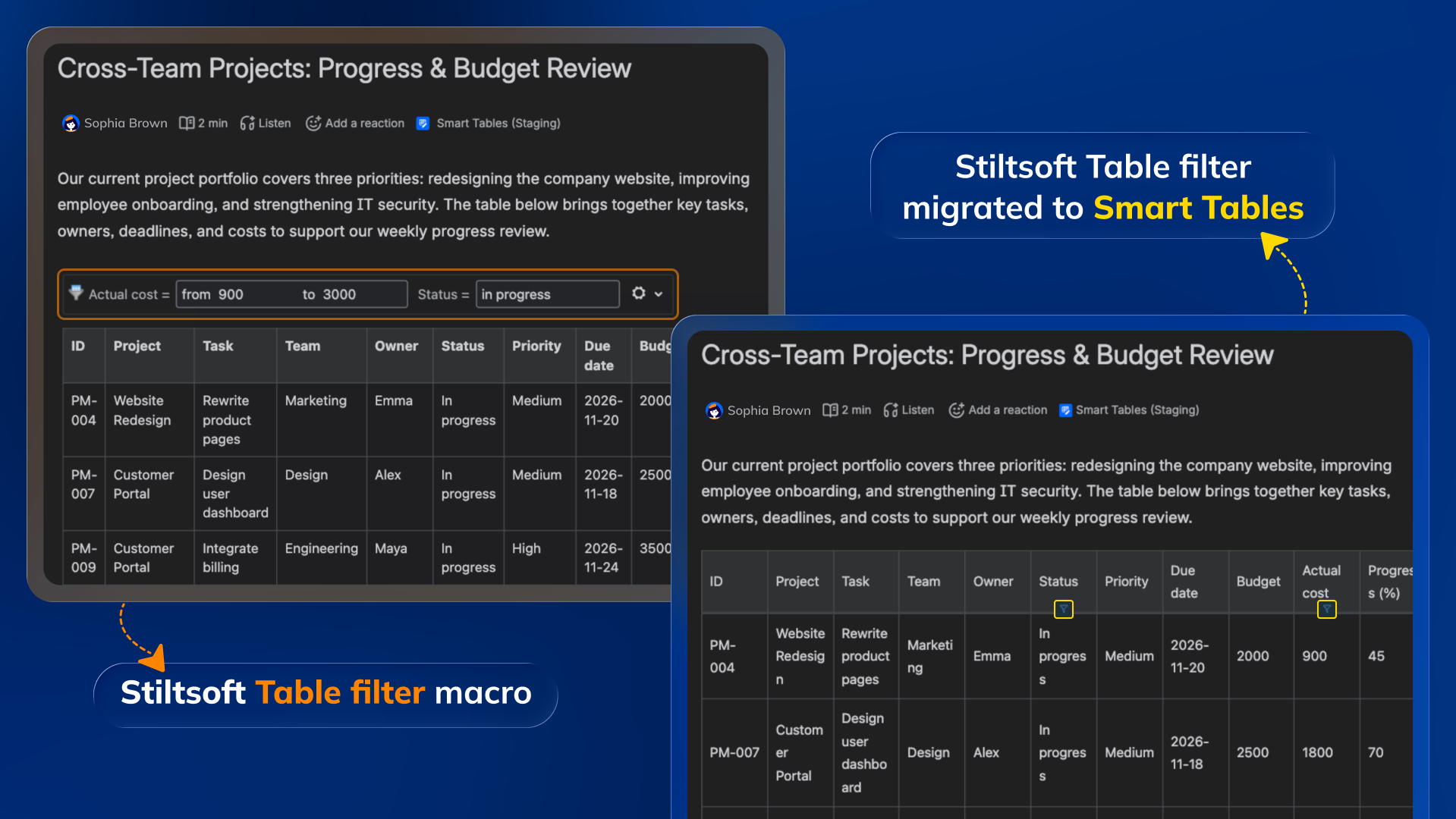
That gives you a practical way to assess the switch. Convert a familiar tracker, review the result, and configure it around your team’s needs before deciding which tables to move next.
For a project manager, that might be a project status table used in weekly reviews. For operations, it could be an asset register. For finance, a budget tracker.
The starting point is your existing data and a table you know how to evaluate.
Why consider Smart Tables as your Table Filter alternative?
If you’re reviewing alternatives to Stiltsoft Table Filter, focus on the tasks your team performs every day: updating records, finding relevant information, calculating results, and preparing reports.
Smart Tables brings these activities together within Confluence.
1/ Update table content while reviewing it
A project review often reveals information that needs changing: a revised deadline, a new owner, or an updated budget.
With Smart Tables’ inline cell editor, you can update table content from the page view. Your team can maintain the information where it reviews it, helping keep trackers useful between reporting meetings.
2/ Filter, search, and organize your records
Smart Tables provides row and column filters, global search, sorting, and grouping. Supported filters already applied in Stiltsoft Table Filter migrate along with your table, so you don’t need to apply them again after conversion. Visual filters are excluded.
Continue working with your existing filters, adjust them as needed, or use search to find a particular item. Sort a column to prioritize a review, or group records by team or status. Sorting and grouping are separate modes you can use for different tasks.
For teams already accustomed to filtering Confluence tables, this means bringing their filtering setup into Smart Tables and exploring additional ways to organize their information.
3/ Add calculations with familiar Excel functions
Smart Tables includes 390+ Excel functions for calculating and working with table data.
A finance team can calculate budget differences. A project manager can add calculations to a tracker. Operations teams can work with totals and other metrics alongside the records they maintain.
Existing Table Filter calculations also carry over, along with all number formats. However, converted calculation rows and columns do not recalculate when filters are applied. You can then configure additional Smart Tables formulas for your workflow.
4/ Turn detailed tables into charts and summaries
Your working table may contain every record, while a review meeting needs a summary.
Smart Tables supports charts and pivot tables, giving you ways to summarize and visualize the source information within Confluence.
For example, configure a pivot table to summarize records by department or a chart to present figures from a budget table. These views can help teams use the information they already maintain for reporting.
5/ Create reusable SQL views, with AI assistance
For questions involving several conditions or aggregated results, Smart Tables includes SQL views.
Create different views from the same source table and organize them in tabs. Write your own query or use AI Mode to generate one from a plain-language request, then review and adjust it.
A PMO could create one view showing high-priority projects exceeding their budgets and another summarizing project counts by team.
This is particularly useful when different stakeholders repeatedly ask different questions about the same dataset.
6/ Get more value from your table app
When comparing subscription costs, consider what your team gets for the price. Smart Tables brings filtering, inline editing, 390+ Excel functions, charts, pivot tables, and AI-assisted SQL views into one app.
For teams using tables for both everyday tracking and reporting, that combination can make Smart Tables a cost-effective choice.
7/ Give your team a modern, user-friendly experience
The interface matters when your team works with tables every day. Smart Tables offers a modern, approachable experience for editing data, applying filters, and exploring reporting views.
For existing Table Filter users, switching is also an opportunity to adopt a table experience that feels clear and comfortable for both regular contributors and occasional users.
How to convert your Stiltsoft Table Filter tables
1. Open the table converter
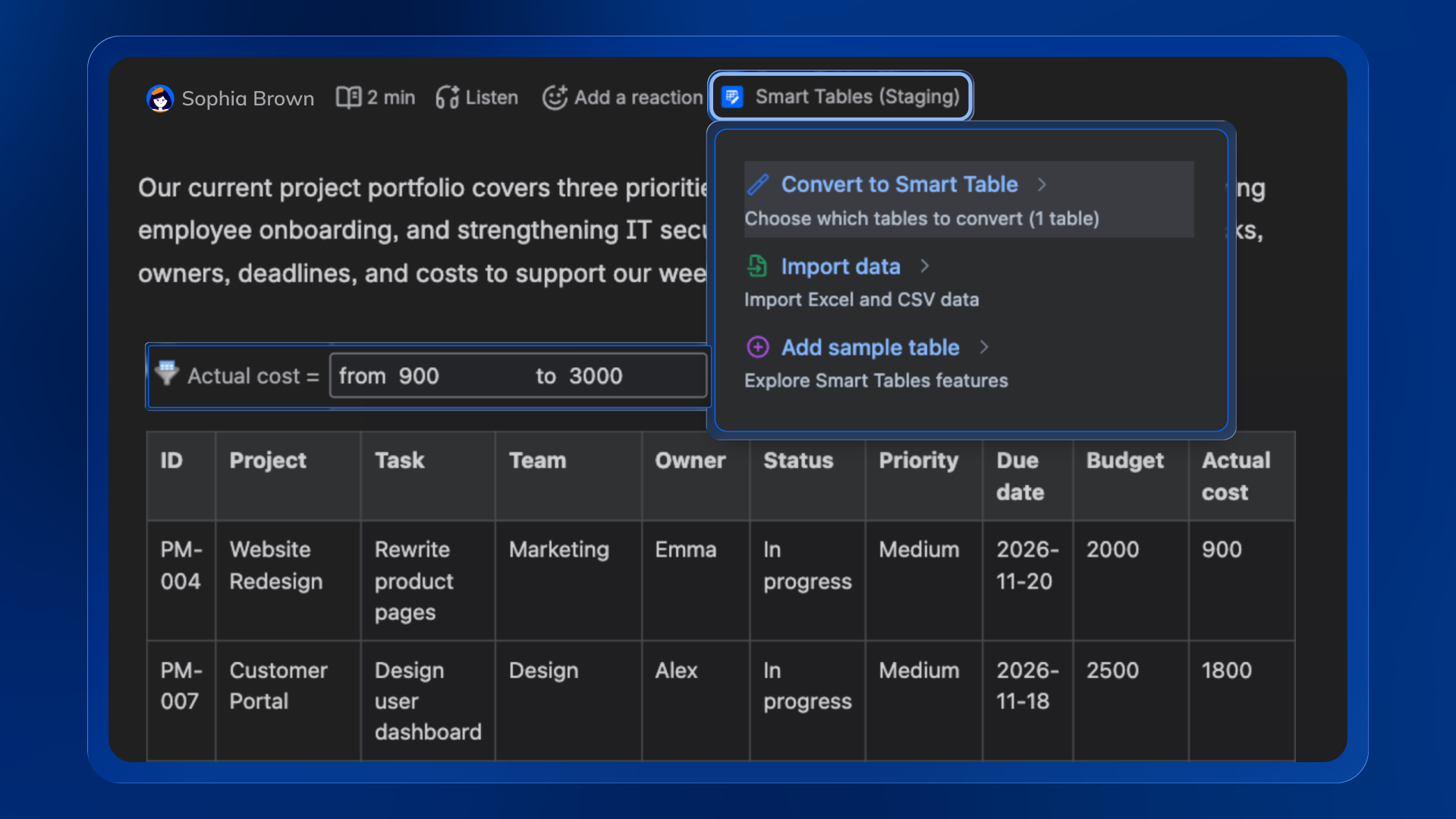
Go to the Confluence page containing the Stiltsoft Table Filter tables you want to convert. In page view, open the Smart Tables menu below the page title and click Convert to Smart Table.
2. Select your tables and save
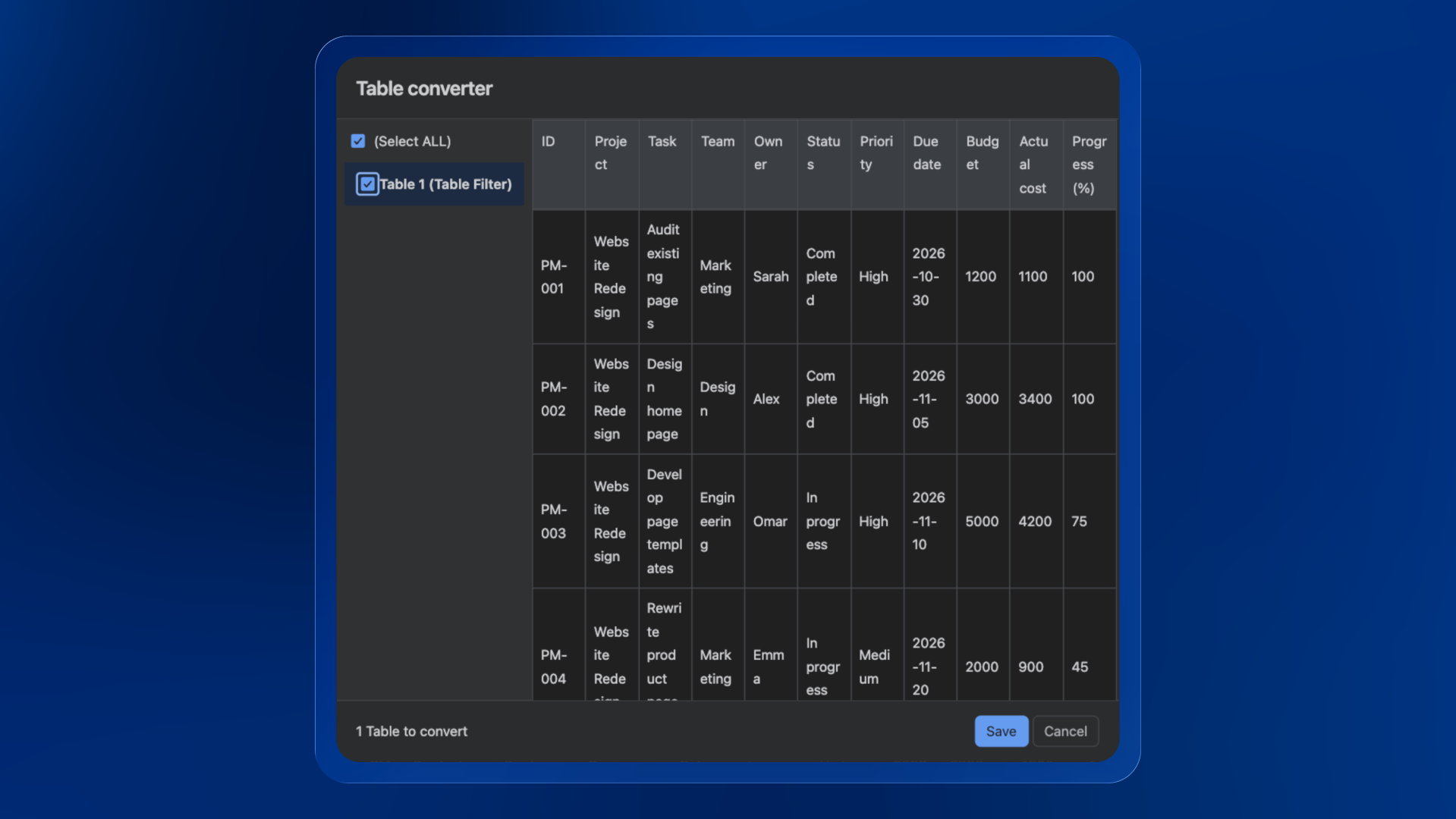
In the Table converter window, select the tables you want to convert, then click Save.
Supported filters applied in Stiltsoft Table Filter migrate with your selected tables, so you don’t need to recreate them.
3. Review and explore your Smart Tables
Check the converted tables’ content and filters. You can then adjust your filtering setup or explore inline editing, formulas, charts, pivot tables, and SQL views.
Optional for Confluence administrators: Use the Macro Usage section in Confluence configuration to locate other pages containing Table Filter macros.
What transfers, and what changes after conversion?
The migration focuses on supported tables within the Stiltsoft Table Filter macro.
Before moving more complex content, review the scope:
| Content | Migration scope |
|---|---|
| Basic tables within Table Filter, with no filters applied | Supported |
| Tables with filter configurations | Supported |
| Stiltsoft visual filters | Not supported for migration |
| Other Stiltsoft macros | Not supported by this migration |
Your supported filtering setup comes with your table, reducing the work needed to get started. Because the apps handle filtering differently, review the converted filters and calculations before continuing your workflow.
Check more details in the Table Filter migration documentation.
Smart Tables’ formulas, charts, pivot tables, and SQL views are features you can configure after conversion. Their availability does not mean existing Stiltsoft macro configurations are automatically recreated.
Can you return to the Table Filter version?
Yes. To return to the previous Table Filter version, restore the relevant version through Confluence page history.
Restoring a page version restores the whole page to that point, so check for any later edits you want to retain before reverting.
Try Smart Tables with a table you already know
The best way to assess a Table Filter alternative is to use information your team actually works with.
Choose a supported table on an existing Confluence page, convert it to Smart Tables, and explore a modern, user-friendly interface for editing, filtering, and reporting.
As you evaluate the switch, consider the value your team gets for the subscription price. Smart Tables combines inline editing, advanced filters, 390+ Excel functions, charts, pivot tables, and AI-assisted SQL views in one app.
Start with one of your Table Filter tables and see how Smart Tables fits your workflow and your budget.
ConfluenceLearningOnboarding